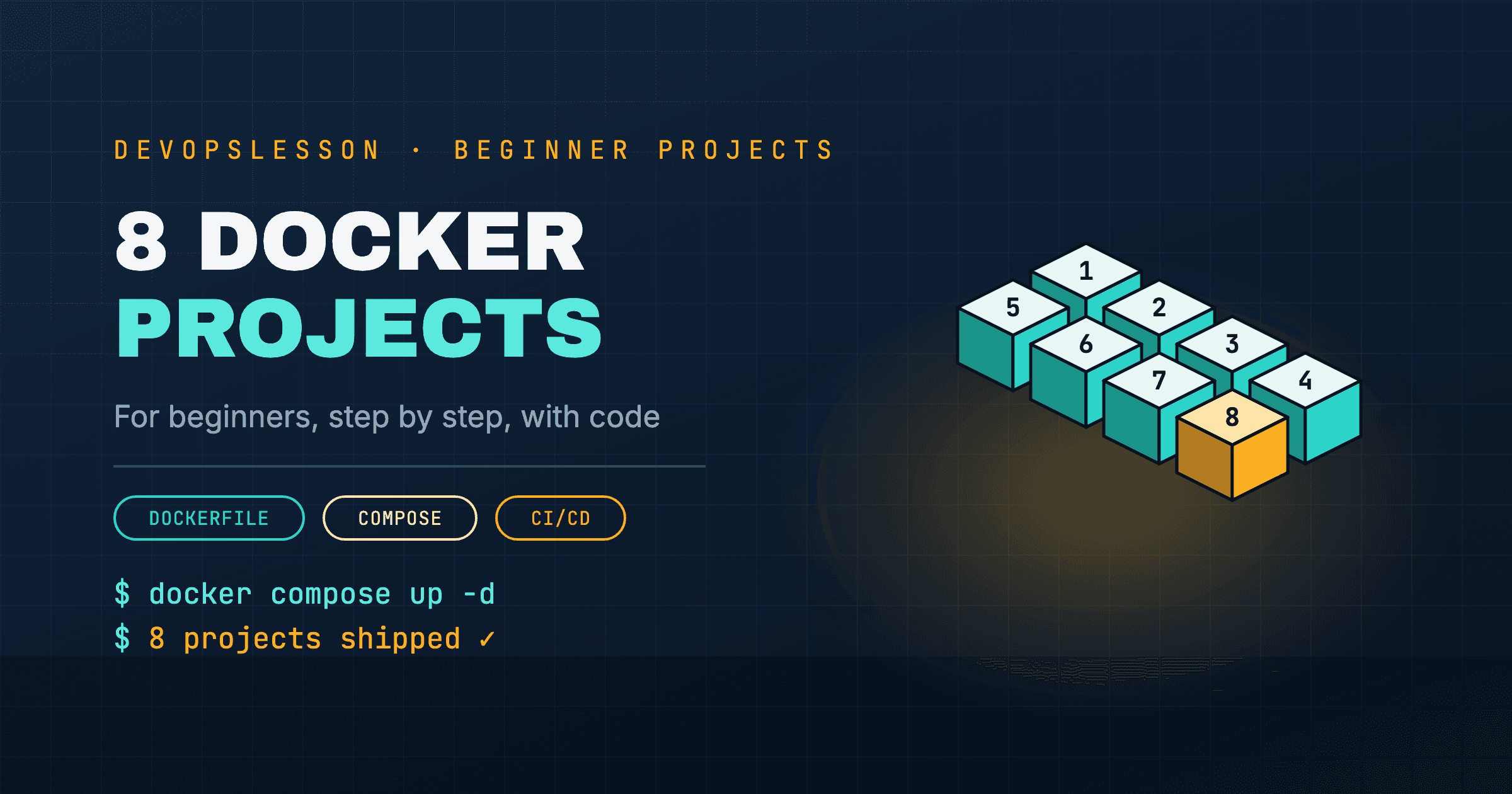
Reading about Docker gets you to "I sort of understand containers." Building things gets you to "I can containerise your app." These eight projects are in the order I would build them: each adds one new idea to the last, and all of them run on a laptop.
Before you start, have Docker installed (macOS, Windows, Linux), or warm up first in the Docker playground, which runs real docker commands in your browser.
| # | Project | New idea | Time |
|---|---|---|---|
| 1 | Static site with Nginx | build, run, ports | 20 min |
| 2 | Containerise a Python API | dependencies, layer caching, env vars | 1 hr |
| 3 | API + Postgres with Compose | multi-container, networks, volumes | 1–2 hr |
| 4 | Multi-stage Go build | small production images | 1 hr |
| 5 | Nginx reverse proxy | routing between services | 1–2 hr |
| 6 | Dev environment with hot reload | bind mounts | 1 hr |
| 7 | Prometheus and Grafana | running other people's images | 1–2 hr |
| 8 | CI that builds and pushes your image | registries, automation | 2 hr |
Project 1: Serve a static site with Nginx
What you learn: writing a Dockerfile, docker build, docker run, port mapping.
Create a folder with an index.html and this Dockerfile:
FROM nginx:1.27-alpine
COPY index.html /usr/share/nginx/html/index.html
Build and run it:
docker build -t my-site:1.0 .
docker run -d --name my-site -p 8080:80 my-site:1.0
Open http://localhost:8080. Now change the HTML, rebuild with tag 1.1, and run it on port 8081 next to the first one. Two versions of the same site, side by side, is the moment containers click.
Stretch: run docker exec -it my-site sh and look around inside the container.
Project 2: Containerise a Python API
What you learn: installing dependencies, layer caching, environment variables, running as a non-root user.
A tiny Flask app, app.py:
import os
from flask import Flask

app = Flask(__name__)

@app.get("/")
def hello():
    return {"message": f"Hello from {os.environ.get('APP_ENV', 'dev')}"}
requirements.txt:
flask==3.0.3
gunicorn==22.0.0
The Dockerfile:
FROM python:3.12-slim
WORKDIR /app

# Dependencies first, so editing app.py does not reinstall them
COPY requirements.txt .
RUN pip install --no-cache-dir -r requirements.txt

COPY app.py .
RUN useradd --create-home appuser
USER appuser

EXPOSE 8000
CMD ["gunicorn", "--bind", "0.0.0.0:8000", "app:app"]
docker build -t hello-api .
docker run -d -p 8000:8000 -e APP_ENV=staging hello-api
curl http://localhost:8000
Edit app.py and rebuild: notice the pip install step says CACHED. That ordering is the single most useful Dockerfile habit. Dockerfile best practices covers the rest, and the Dockerfile linter will point out issues in yours.
Project 3: API and Postgres with Docker Compose
What you learn: running several containers together, service names as hostnames, named volumes that survive restarts.
Extend project 2 so it counts visits in Postgres. Add psycopg[binary]==3.2.1 to requirements.txt and replace app.py:
import os
import psycopg
from flask import Flask

app = Flask(__name__)
DB = os.environ["DATABASE_URL"]

with psycopg.connect(DB) as conn:
    conn.execute("CREATE TABLE IF NOT EXISTS visits (id serial PRIMARY KEY)")

@app.get("/")
def hello():
    with psycopg.connect(DB) as conn:
        conn.execute("INSERT INTO visits DEFAULT VALUES")
        count = conn.execute("SELECT count(*) FROM visits").fetchone()[0]
    return {"visits": count}
Then describe both services in compose.yaml:
services:
  api:
    build: .
    ports:
      - "8000:8000"
    environment:
      DATABASE_URL: postgresql://app:secret@db:5432/app
    depends_on:
      db:
        condition: service_healthy

  db:
    image: postgres:16-alpine
    environment:
      POSTGRES_USER: app
      POSTGRES_PASSWORD: secret
      POSTGRES_DB: app
    volumes:
      - db-data:/var/lib/postgresql/data
    healthcheck:
      test: ["CMD-SHELL", "pg_isready -U app"]
      interval: 5s
      retries: 10

volumes:
  db-data:
docker compose up -d --build
docker compose logs -f api
Three things to notice:
- The API reaches the database at host
db, the service name. Compose puts both on one network with DNS. condition: service_healthywaits until Postgres accepts connections, not just until its container starts. Without it you get connection refused on startup.- Run
docker compose downthenupagain: the visit count survives, because it lives in thedb-datavolume.docker compose down -vdeletes it.
Before you run it, paste the file into the Docker Compose validator. It catches a misspelled key, a volume you forgot to declare or a depends_on that points nowhere, with the line number.
This is the project to put on a resume first. Add a README with the run command and you have something an interviewer can clone and start.
Project 4: A multi-stage build for a Go service
What you learn: separating the build environment from the runtime image.
# Stage 1: build
FROM golang:1.23 AS build
WORKDIR /src
COPY go.mod ./
RUN go mod download
COPY . .
RUN CGO_ENABLED=0 go build -o /out/server .

# Stage 2: run
FROM gcr.io/distroless/static-debian12
COPY --from=build /out/server /server
USER nonroot
ENTRYPOINT ["/server"]
Build it and compare sizes with docker images. The golang image is several hundred megabytes; the final image is a few. Smaller images pull faster, start faster and have far fewer packages to patch. Write down the before and after numbers, because that comparison makes a good resume bullet. Multi-stage builds goes deeper.
Project 5: Put an Nginx reverse proxy in front
What you learn: routing one public port to several internal services.
Add a second service, for example the static site from project 1, and an Nginx proxy that sends /api/ to the API and everything else to the site. nginx.conf:
server {
    listen 80;

    location /api/ {
        proxy_pass http://api:8000/;
    }

    location / {
        proxy_pass http://web:80;
    }
}
In Compose, add the site as web and the proxy as the only service that publishes a port. Remove the ports: line from api, so it and web are reachable only inside the network:
  web:
    build: ./site   # the project 1 folder

  proxy:
    image: nginx:1.27-alpine
    ports:
      - "80:80"
    volumes:
      - ./nginx.conf:/etc/nginx/conf.d/default.conf:ro
    depends_on:
      - api
      - web
This is the shape of most real deployments: one entry point, private services behind it.
Project 6: A development environment with hot reload
What you learn: bind mounts, and the difference between dev and production containers.
For a Node.js app, mount your source code into the container so edits show up without rebuilding:
docker run --rm -it -p 3000:3000 \
  -v "$(pwd)":/app -w /app \
  node:22-alpine \
  sh -c "npm install && npx nodemon index.js"
Edit a file and watch it restart. You now have a dev environment any teammate can run with one command, whatever is installed on their machine. Then explain in your README why you would not use bind mounts in production. Bind mounts covers the details.
Project 7: Prometheus and Grafana in Compose
What you learn: configuring images you did not write, through config files and environment variables.
services:
  prometheus:
    image: prom/prometheus:v2.54.1
    volumes:
      - ./prometheus.yml:/etc/prometheus/prometheus.yml:ro
    ports:
      - "9090:9090"

  grafana:
    image: grafana/grafana:11.2.0
    ports:
      - "3001:3000"
    volumes:
      - grafana-data:/var/lib/grafana

volumes:
  grafana-data:
With a minimal prometheus.yml that scrapes Prometheus itself:
scrape_configs:
  - job_name: prometheus
    static_configs:
      - targets: ["localhost:9090"]
Log in to Grafana at http://localhost:3001, add Prometheus as a data source at http://prometheus:9090, and build one dashboard. To go further, add metrics to your project 2 API and scrape it too.
Project 8: Build and push your image with GitHub Actions
What you learn: container registries, image tags, and automating builds.
Push your project 2 or 3 code to GitHub and add .github/workflows/docker.yml:
name: docker
on:
  push:
    branches: [main]

permissions:
  contents: read
  packages: write

jobs:
  build:
    runs-on: ubuntu-latest
    steps:
      - uses: actions/checkout@v4
      - uses: docker/login-action@v3
        with:
          registry: ghcr.io
          username: ${{ github.actor }}
          password: ${{ secrets.GITHUB_TOKEN }}
      - uses: docker/build-push-action@v6
        with:
          push: true
          tags: ghcr.io/${{ github.repository }}:${{ github.sha }}
GitHub Container Registry requires the image name in lowercase, so if your username or repository has capitals, set the tag by hand. Every push to main now produces an image tagged with its commit. Build and push Docker images with GitHub Actions adds caching and multi-platform builds.
This project ties the others together: it is what "CI/CD" means on a job description.
How to show these on a resume
Pick the two or three strongest, usually 3, 4 and 8, and give each its own repository with:
- A README that starts with the run command:
docker compose up -d, then what to open. - A short architecture note: which services, which ports, where data lives.
- One resume bullet each, with a number where you have one: "Cut the production image from 850 MB to 12 MB with a multi-stage build" reads very differently from "Used Docker".
For bigger, multi-tool projects once these feel easy, see Top 10 DevOps Projects for Your Resume and Kubernetes Projects for Your Resume.
When something breaks
Every beginner hits the same handful of errors. These pages cover them:
Frequently asked questions
What is a good first Docker project?
Serve a static HTML page with the official Nginx image. It takes a two-line Dockerfile, teaches you build, run and port mapping, and works in minutes. Then move to containerising a small API you wrote, which adds dependencies and environment variables.
How many Docker projects do I need for my resume?
Two or three good ones beat eight small ones. A Compose stack with a database and persistent volume, a multi-stage production image, and a CI pipeline that builds and pushes the image together cover what most junior DevOps job descriptions ask about Docker.
Do I need to install Docker to do these projects?
To build them properly, yes: Docker Desktop on macOS or Windows, or Docker Engine on Linux. To practise the commands first without installing anything, use the free Docker playground on DevOpsLesson, which runs in the browser.
Should I learn Docker Compose or Kubernetes after these projects?
Compose first, which projects 3 to 5 cover. It runs multi-container apps on one machine with a single file. Kubernetes solves running containers across many machines, and its concepts make much more sense once Compose feels easy.
Vishvesh Patel is a DevOps engineer who writes hands-on guides on Docker, Kubernetes, Terraform, CI/CD, AWS, and Linux. He builds the tutorials, roadmaps, and browser playgrounds at DevOpsLesson to help engineers go from beginner to job-ready.