People search for a "LinkedIn connector for Claude" expecting a button in the connector directory. There isn't one. LinkedIn keeps job search behind its own site and a closed partner program, so nothing official plugs it into Claude.
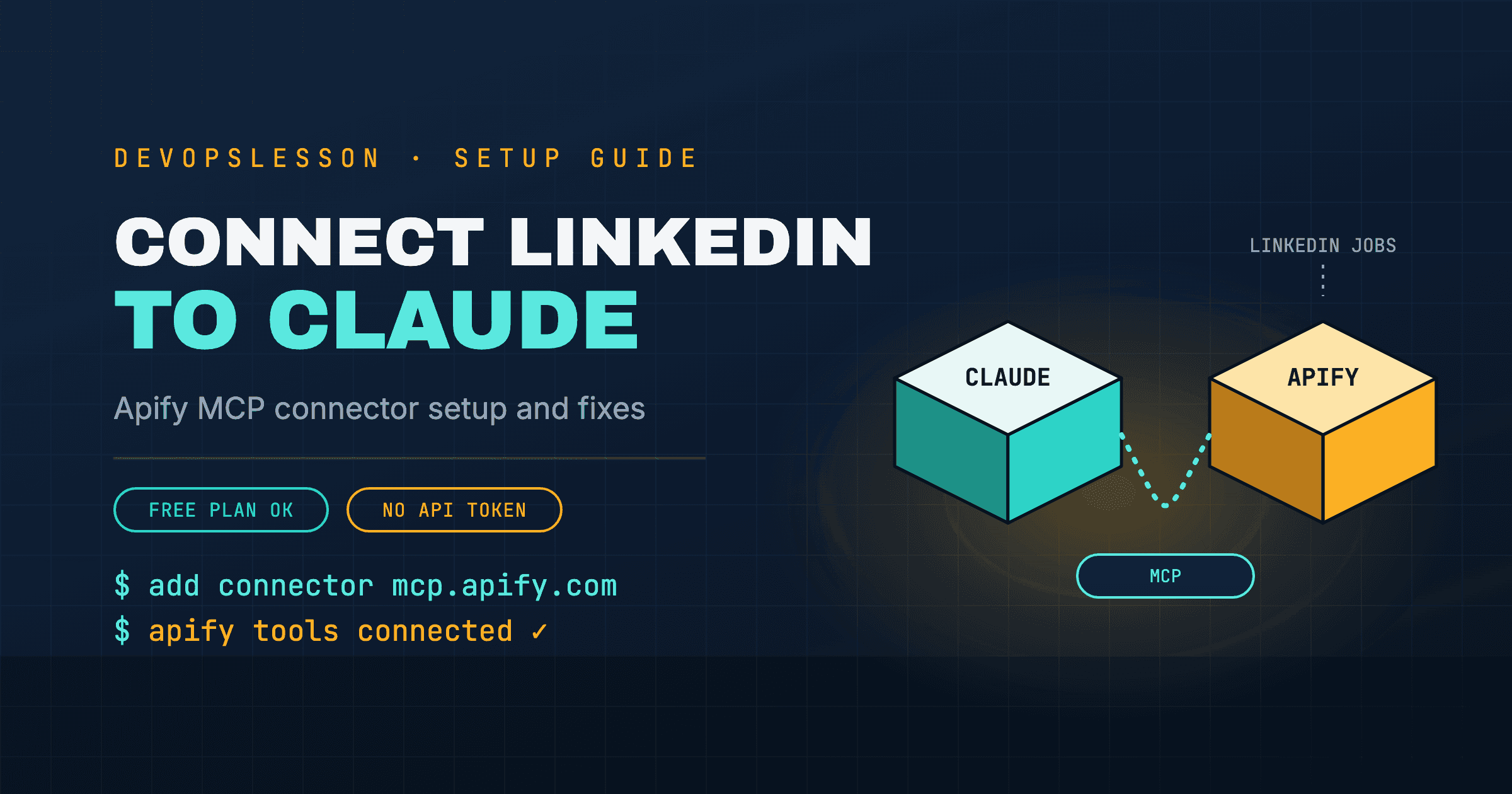
What works instead is the Apify connector. Apify runs scrapers, called Actors, and its MCP server lets Claude choose and run one, including LinkedIn job search Actors, and read the results back. Once it is set up, "find DevOps jobs in Toronto from the last 24 hours" in a Claude chat returns real postings with links.
This guide covers only the connection: setup on each plan, switching it on, and fixing it when it breaks. For what to do with it afterwards, see How to Use Claude to Find Jobs and the Claude job-search prompts.
What you need
- A Claude account. Free works: the Free plan allows one custom connector. Paid plans allow more.
- An Apify account. The free tier includes monthly usage credit, which covers a personal job search. Sign up at apify.com.
- Claude Desktop, claude.ai or the mobile app. You add the connector once and it is available everywhere you use Claude.
Option 1: Add Apify as a custom connector (recommended)
This is the method Apify recommends. It uses Apify's hosted server, signs in through your browser, and needs no API token.
- In Claude, open Customize → Connectors. In some versions of Claude Desktop this is under Settings → Connectors.
- Click Add, then Add custom connector.
- Enter a name, for example
Apify. - Enter the remote MCP server URL:
https://mcp.apify.com - Click Continue. Claude detects the sign-in settings; keep the defaults.
- Click Add.
- Your browser opens to Apify. Sign in and approve access.
On a Team or Enterprise plan, an Owner adds the connector under Organization settings → Connectors first. Members then find it in Customize → Connectors and click Connect.
Option 2: Install from the connector directory
In Claude Desktop, open the connector directory, search for Apify, and install it. This works too, but if it fails with a connection error, switch to Option 1. The hosted server avoids local install problems.
Turn it on in a conversation
Adding the connector does not switch it on everywhere. In each new chat:
- Click + at the bottom left of the message box.
- Choose Connectors.
- Toggle Apify on.
Then check it works:
"Search Apify for Actors that scrape LinkedIn job postings without logging in, and list the top five with their price per result."
If Claude answers with a list of Actors, the connection is working. Now try a real search:
"Use Apify to find 20 DevOps Engineer jobs in [City] posted on LinkedIn in the last 24 hours. Give me a table with title, company, location, posted date and link."
Fixes for common problems
Apify tools do not appear in the chat
- Make sure the connector is toggled on for this conversation (the steps above).
- Open the connector's settings and check its tools are set to Always allow or Ask first, not blocked. Some tools are blocked by default.
- In Claude Desktop, quit and reopen the app after adding the connector.
"Unauthorized" or "Invalid token"
Remove the connector and add it again. That starts a fresh browser sign-in to Apify.
"Unable to connect to extension server" (directory install only)
The local install failed. Remove it and use the custom connector at https://mcp.apify.com (Option 1).
A config file pointing at /sse stopped working
Older guides used an .../sse endpoint. Apify moved to the Streamable HTTP transport, and the SSE endpoint was retired on April 1, 2026. Replace the old setup with https://mcp.apify.com.
The free plan will not let you add it
The Free plan allows one custom connector. If you already added another, remove it under Customize → Connectors, or upgrade to a paid plan to keep both.
The search runs but returns nothing, or fails
- Your Apify monthly credit may have run out. Check usage in the Apify Console.
- The Actor Claude picked may be broken or rate-limited. Ask Claude which Actor it used, then tell it to try a different one with more recent successful runs.
- Your filters may be too narrow. Widen the location or the time window.
Claude says it cannot access LinkedIn
Claude is trying its own web tools instead of Apify. Say it explicitly: "Use the Apify connector to run a LinkedIn jobs Actor."
Keep it on the right side of LinkedIn
Use Actors that read only LinkedIn's public, logged-out job search, and never give an Actor your LinkedIn password or session cookie. Stick to job postings rather than people's profiles, and keep the volume to what you will actually read. The reasons are in Can Claude Scrape LinkedIn?.
Where to go next
- 15 Claude Prompts for Job Search with Apify: the prompts to run now that the connector works.
- How to Automate Job Applications with Claude: what is worth automating, and what is not.
- How to Use Claude to Find Jobs: the complete daily workflow.
Frequently asked questions
Is there an official LinkedIn connector for Claude?
No. LinkedIn does not publish a connector for Claude, and its job search is not available through a public API. Third-party connectors in Claude's directory can publish posts to LinkedIn, but to search LinkedIn jobs from Claude you need a scraping connector such as Apify.
Can I use the Apify connector on Claude's free plan?
Yes. Claude's Free plan allows one custom connector, so you can add Apify as a custom connector with the URL https://mcp.apify.com. Pro, Max, Team and Enterprise plans can add more. Apify itself has a free tier with monthly usage credit, which covers light personal use.
Do I need an Apify API token?
Not with the remote server. Adding https://mcp.apify.com as a custom connector signs you in to Apify through your browser with OAuth. Older guides that paste an API token into a local config file still work, but the remote server is simpler and updates itself.
Does the connector work on claude.ai and the mobile app?
Yes. Remote connectors run on Anthropic's servers rather than your computer, so once you add Apify it is available in Claude Desktop, on claude.ai and in the mobile apps. You still switch it on per conversation.
Vishvesh Patel is a DevOps engineer who writes hands-on guides on Docker, Kubernetes, Terraform, CI/CD, AWS, and Linux. He builds the tutorials, roadmaps, and browser playgrounds at DevOpsLesson to help engineers go from beginner to job-ready.